Nicole Kidman Dance AI: Change the Background with Your Own Image
Use six preset scenes, an uploaded background reference or a custom scene for the 14-second Nicole Kidman Dance AI duo routine.
Yes, this tool accepts a separate background image for your Nicole Kidman Dance AI duo video. You can also choose a preset or describe a scene. All three options use the same two-person reference routine; they do not switch to a different dance.
How to use your own background
- Open the duo generator and upload two individual photos or one photo of both people.
- In Scene, select Upload background and choose the image you want the AI to use as an environment reference.
- Check the selected background preview. Keep the people in the dancer photo inputs; the background input describes the setting.
- Select 480p (one video credit) or 720p (two video credits), then submit once.
- Preview both dancers and the setting when the task finishes. Download the completed MP4 from My Videos.
The background upload is a separate reference input, so you do not need to edit a new scene into your portrait first. A scene change is still generated by AI: objects, lighting and architecture can shift. This is not a pixel-exact background compositor.
Which preset scenes are available?
| Scene | Setting | | --------------- | ------------------------------------------------------------------ | | Night plaza | The night-plaza setting associated with the selected duo reference | | Subway platform | A station platform background reference | | Red room | An interior with red tones | | Neon street | A street lit by neon signs | | Stage lights | A performance setting with stage lighting | | Studio | A studio setting |
These presets use background reference images. Preview a studio reference or select a scene in the generator to see its preview.
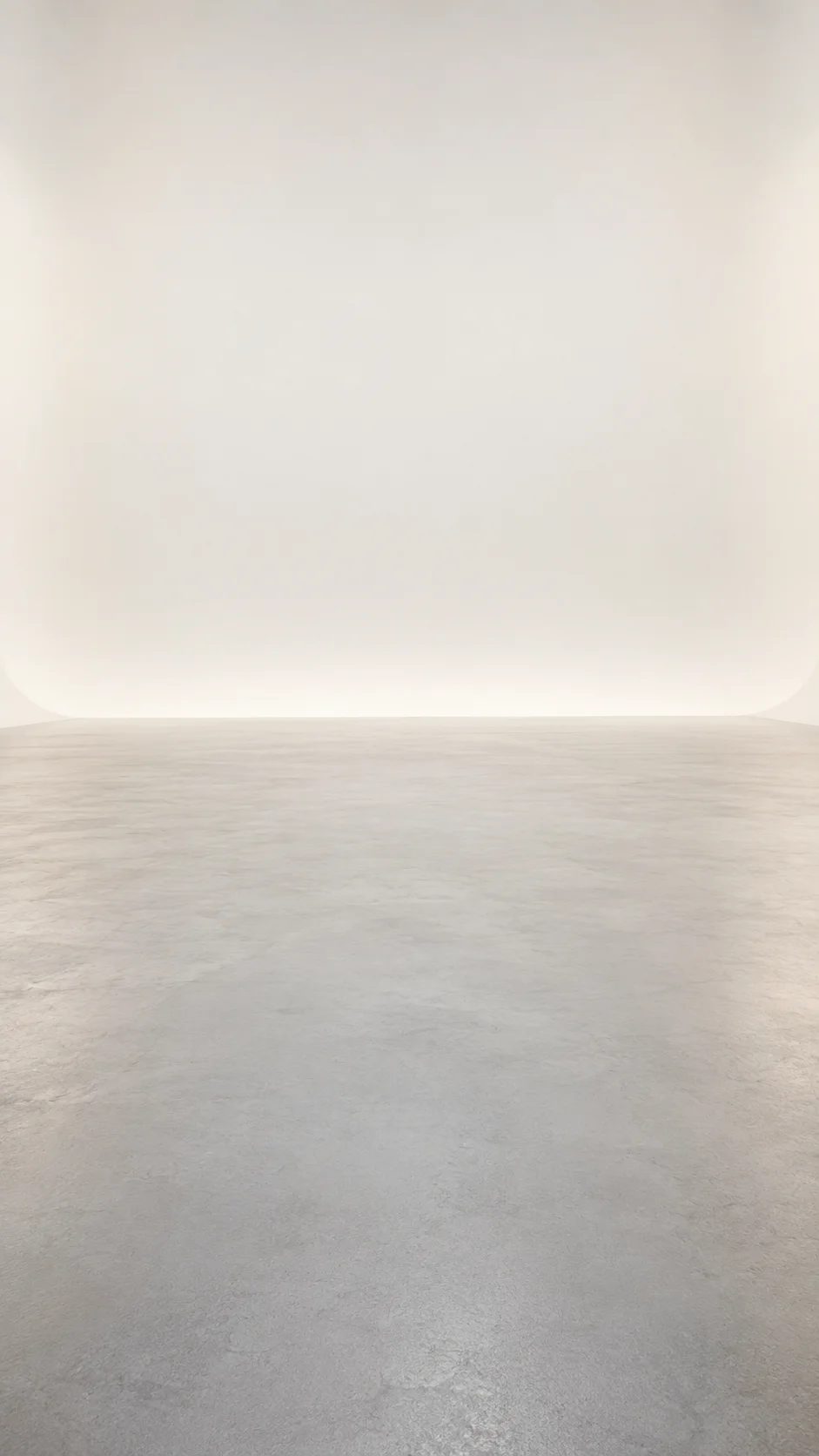
What makes a useful background image?
Choose an empty scene with visible floor space for two full-body dancers. A vertical composition helps you judge how the scene might fit the 9:16 output. Avoid text, faces and important details that need to remain exact. Use an image you have permission to upload.
For a scene without a reference image, select Custom and describe the setting. For example: “An empty indoor studio with warm side lighting and a clear wooden floor.” This guides the environment; it does not promise exact rendering of every detail.
Does changing the background change the music or credit cost?
The output remains a 14-second vertical duo video with the reference soundtrack restored. The selected resolution determines the credit cost: one for 480p, two for 720p. Higher resolution does not guarantee better identity preservation, background accuracy or beat timing.
Read the duo photo guide and music and download guide before generating. Watch scene examples to understand possible results; examples are not a guarantee for every input.